On-model product photos for your Shopify store
Your Shopify theme looks its best with consistent, on-model photos, but most clothing stores start with flat lays and supplier shots; Glammo AI turns those into a matching set for every product.
Try Glammo free with 10 credits. No card required.
One product, a full product page
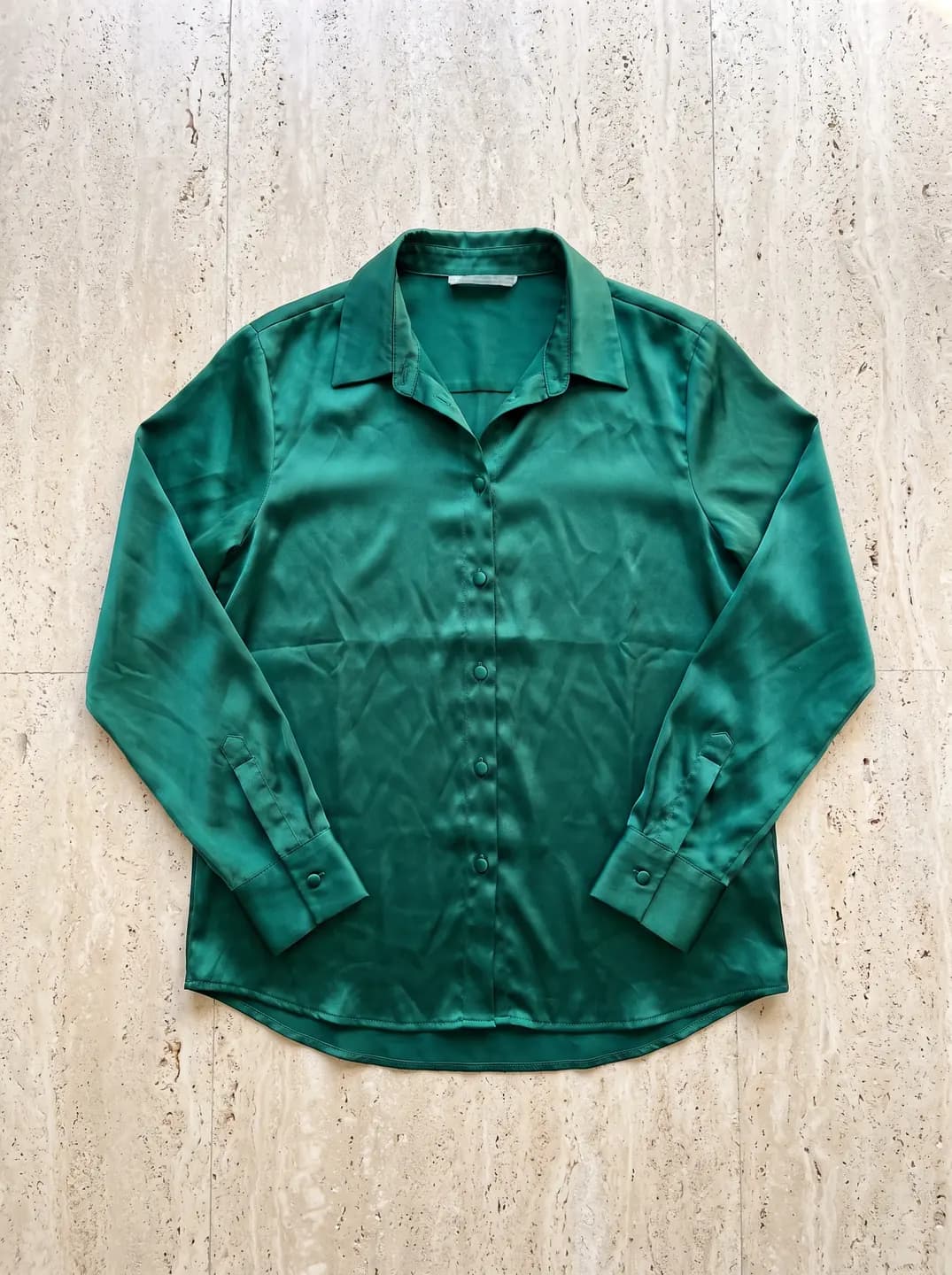
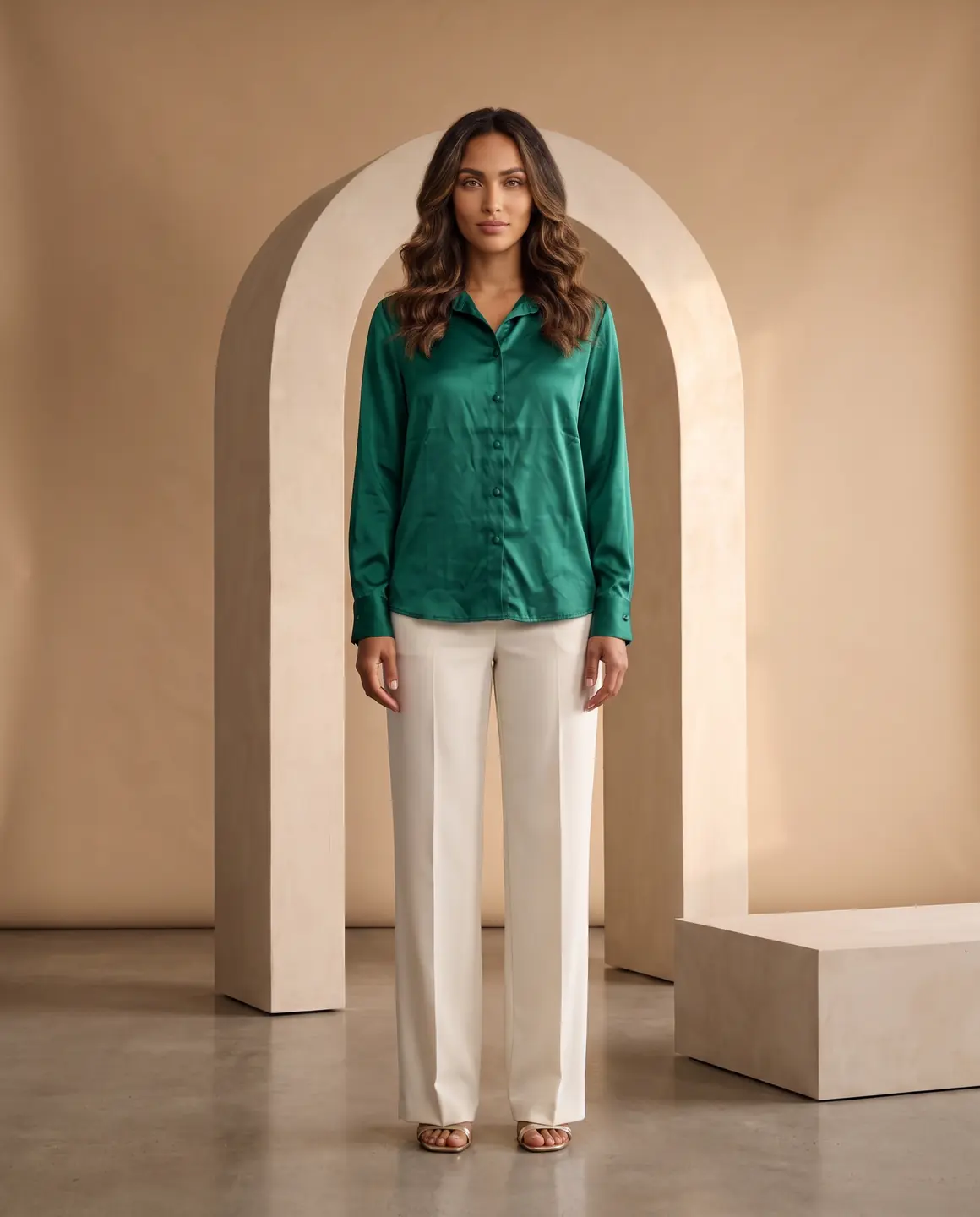
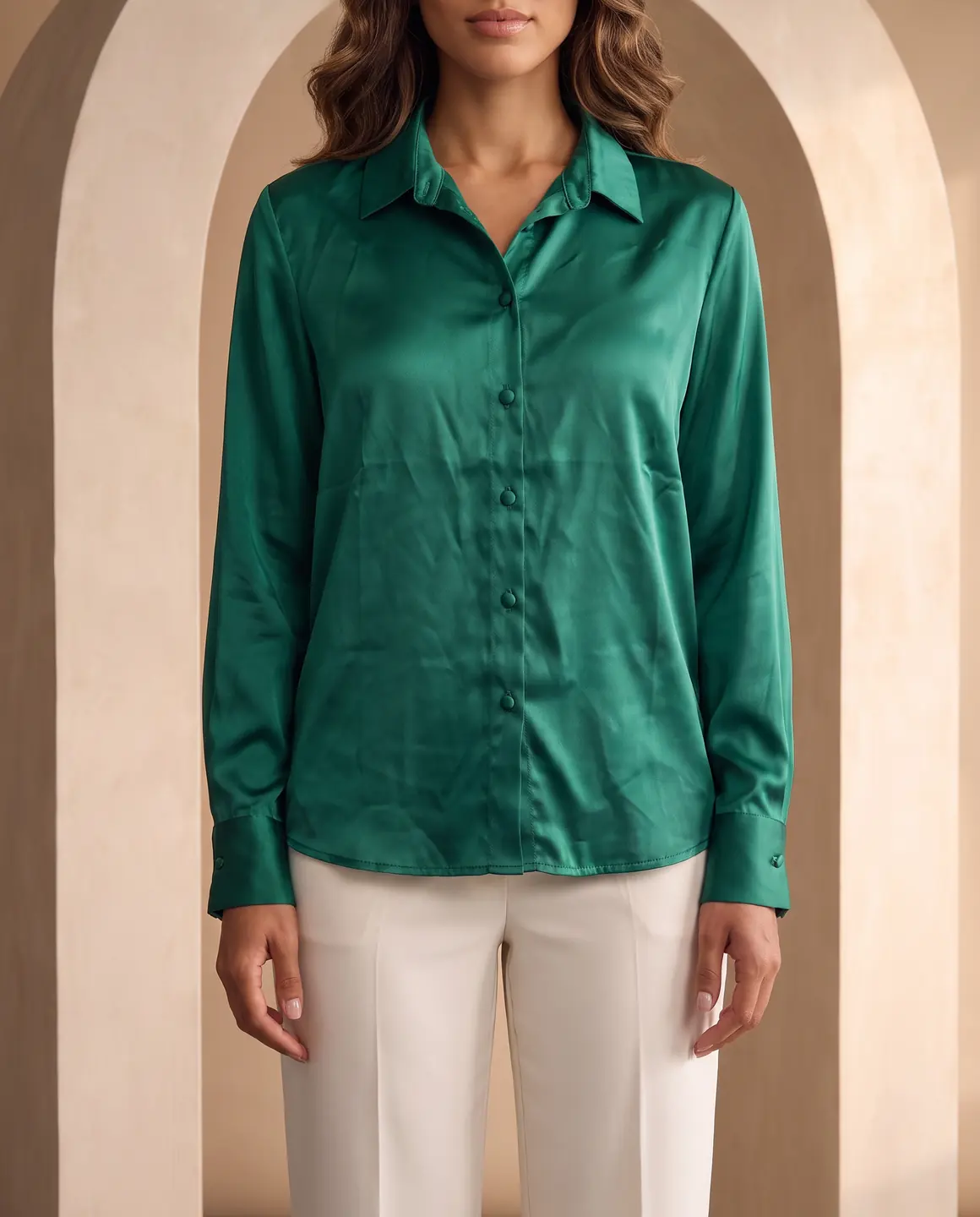
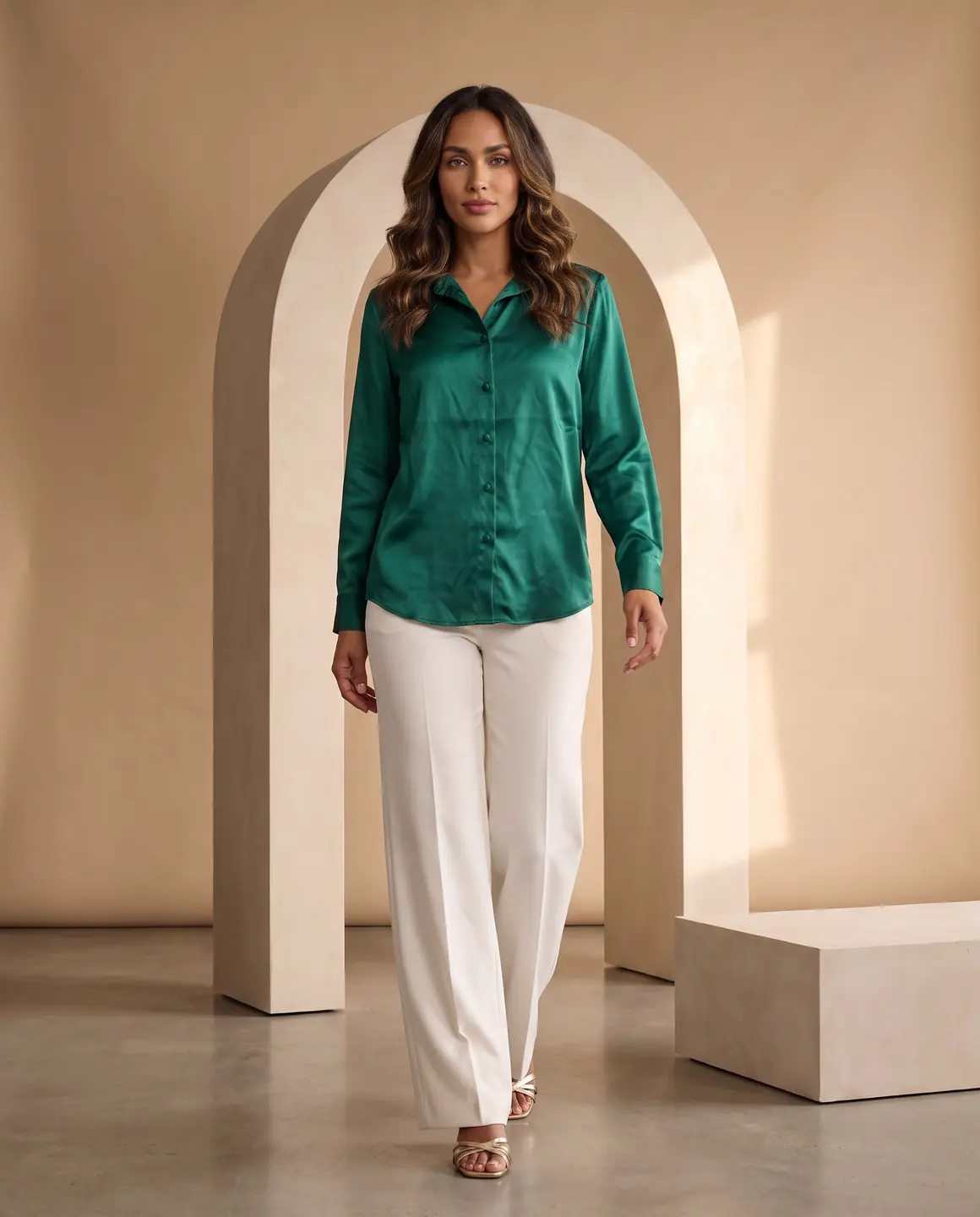
A sample photo and images made from it. Models are fictional and AI-generated.
Your week with Glammo
Whether you add products weekly or by season, the routine is the same.
- 01
New products land in your admin
Save the best photo of each one: your flat lay, a mannequin shot or the supplier's photo.
- 02
Shoot them in your store's look
Use the same model, scene and style as the rest of your catalogue, so your collection pages stay consistent.
- 03
Generate each product's set
A main on-model image, a detail, a packshot and, for your bestsellers, a four-second video.
- 04
Add them to the product
Download on a paid plan, then upload the images to each product's media in your Shopify admin.
Adding the images in Shopify
Today you download images from Glammo and upload them to Shopify yourself. These steps keep your store tidy.
Upload to the product's media
In your Shopify admin, open the product and add the downloaded images to its media. Drag the on-model image into the first position: your theme uses it in collection grids.
Use the same aspect ratio everywhere
Shopify advises one consistent aspect ratio for featured images so collection pages line up. Pick one, such as 4:5, for every main image.
Stay within Shopify's limits
Shopify accepts images up to 5000 × 5000 px and under 20 MB, and says 2048 × 2048 px usually looks best for square images. PNG works best for most product images, then JPEG.
Add the video to the same product
Product media takes video too: MP4, MOV or WebM files of up to 10 minutes and 1 GB. A four-second clip of a bestseller sits alongside its photos.
Add alt text to each image
Describe the garment, colour and how it's worn. It helps shoppers using screen readers and helps search engines understand the page.
Assign images to variants
If a product has colour variants, give each variant its own on-model image so the photo changes when a shopper picks a colour.
Keep the packshot for other channels
If you also sell on marketplaces that ask for a garment-only image on white, use the packshot there.
Where these requirements come from
Checked on .
Which plan fits
Starter
$19/month
25 credits a month · 25 images, or 5 videos
Pro
Suggested$59/month
120 credits a month · 120 images, or 24 videos
The most popular plan: credits for a growing catalogue each month, plus a model and scenes of your own for a store look nobody else has.
Studio
$149/month
375 credits a month · 375 images, or 75 videos
Every new account starts with 10 free credits, no card. On a plan, 10 more credits cost $9 any time. See full pricing
Common questions
How do I get Glammo images into my Shopify store?
Download them from Glammo on a paid plan, then upload them to each product's media in your Shopify admin. Glammo doesn't change your store directly.
Can I keep the same model across my whole store?
Yes. Choose the same model and scene for every product. On Pro and Studio you can create a model that only your store uses.
What image shape works best for Shopify themes?
It depends on your theme. Many fashion themes use portrait images, and Glammo makes 4:5 by default. Whatever you choose, use the same ratio for every main image.
Can I make images for each colour variant?
Yes. Photograph each colour and create a set for it with the same model, then assign the images to the matching variants in Shopify.
Do the images replace a professional photoshoot?
For many product pages they can. For hero campaigns you may still want a shoot. Either way, compare every image with your product before publishing.
Read next
Bring one product photo. See it on a model for free.
Try Glammo free with 10 credits. No card required.